AI Shadow Remover & Portrait Relighting

AI Shadow Remover: Clear Harsh Shadows from Photos

Eliminate unflattering facial shadows, dark under-eye bags, and cast shadows on backgrounds with one text prompt. Rebalance lighting across portraits, products, and real estate photos without manual brushing.

  • Removes harsh direct sunlight shadows, hat shadows, and dark eye socket shading
  • Replaces gloomy indoor darkness with balanced, natural studio key light and fill light
  • Prompts anchor facial features, makeup, and fabric texture; compare the face at full size
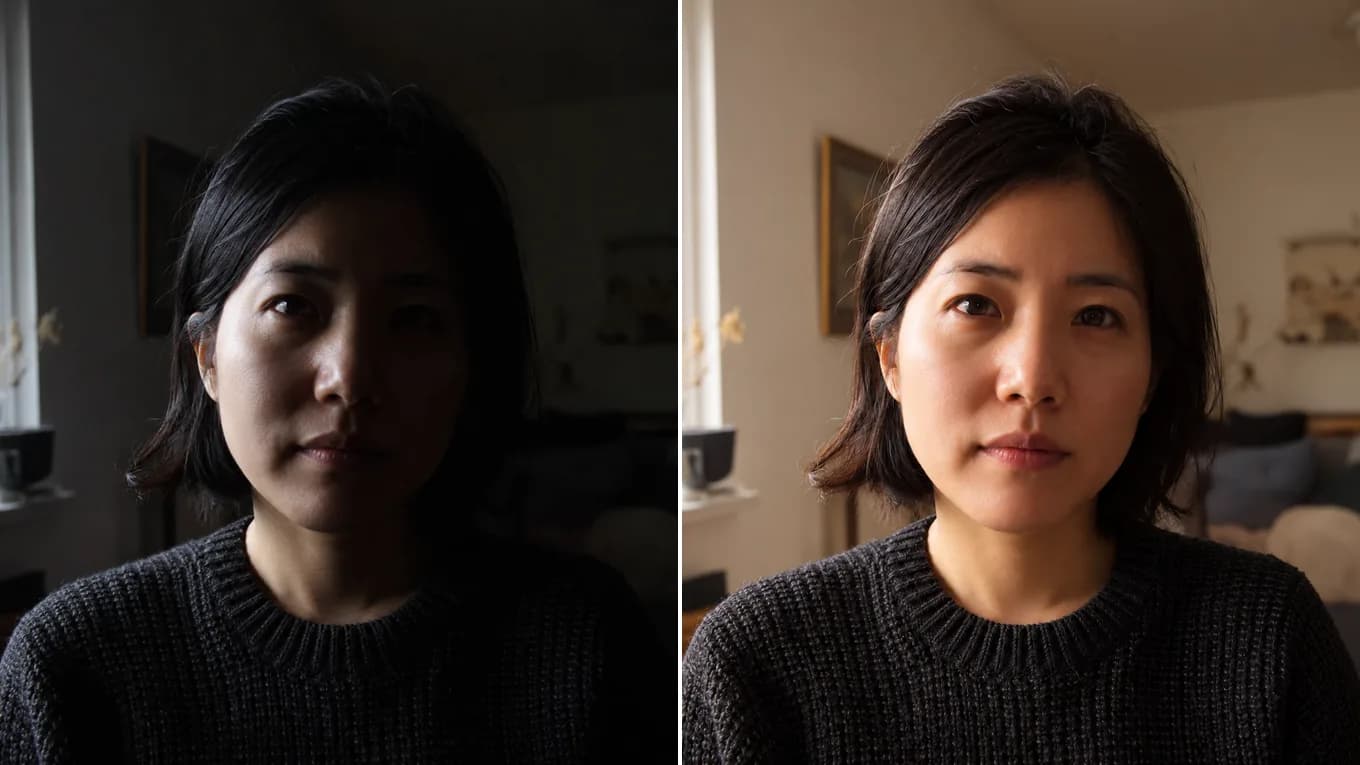
Portrait with a heavy shadow across half of the face and a gloomy background before AI shadow removal — Portrait with soft, balanced warm light after AI shadow removalHarsh Shadow SnapshotAI Balanced & Relit
AI shadow removal lifts deep cast shadows, softens harsh overhead sunlight, and adds soft studio light while aiming to keep the same face.

Live AI Shadow Remover Studio

Upload your photo and lift harsh shadows instantly

Upload any portrait or product photo with dark cast shadows. Specify 'soft balanced studio lighting' in the prompt box.

Transformation studio

PNG, JPEG or WebP, up to 10 MB

Upload image0 of 1 images

Try these examples

Credits shown before you generate

Free tier1024 × 1024 · 1K · 1 image

Add an image and prompt to begin

Shadow Removal Before & After Showcase

See how balanced lighting transforms photos

Compare harsh indoor, midday, dappled, and print shadows with the evened-out results.

Before and after lifting a heavy indoor shadow from a portrait
Source photoAI output
Portrait Shadow Lift

Lift a heavy indoor shadow into balanced studio light

Brightens the half of the face lost in shadow and the gloomy room behind it with a soft, warm key light.

Keep the exact face, expression, and dark outfit. Lift the heavy shadow across the face and the gloomy background, then relight with a soft, warm studio key light.
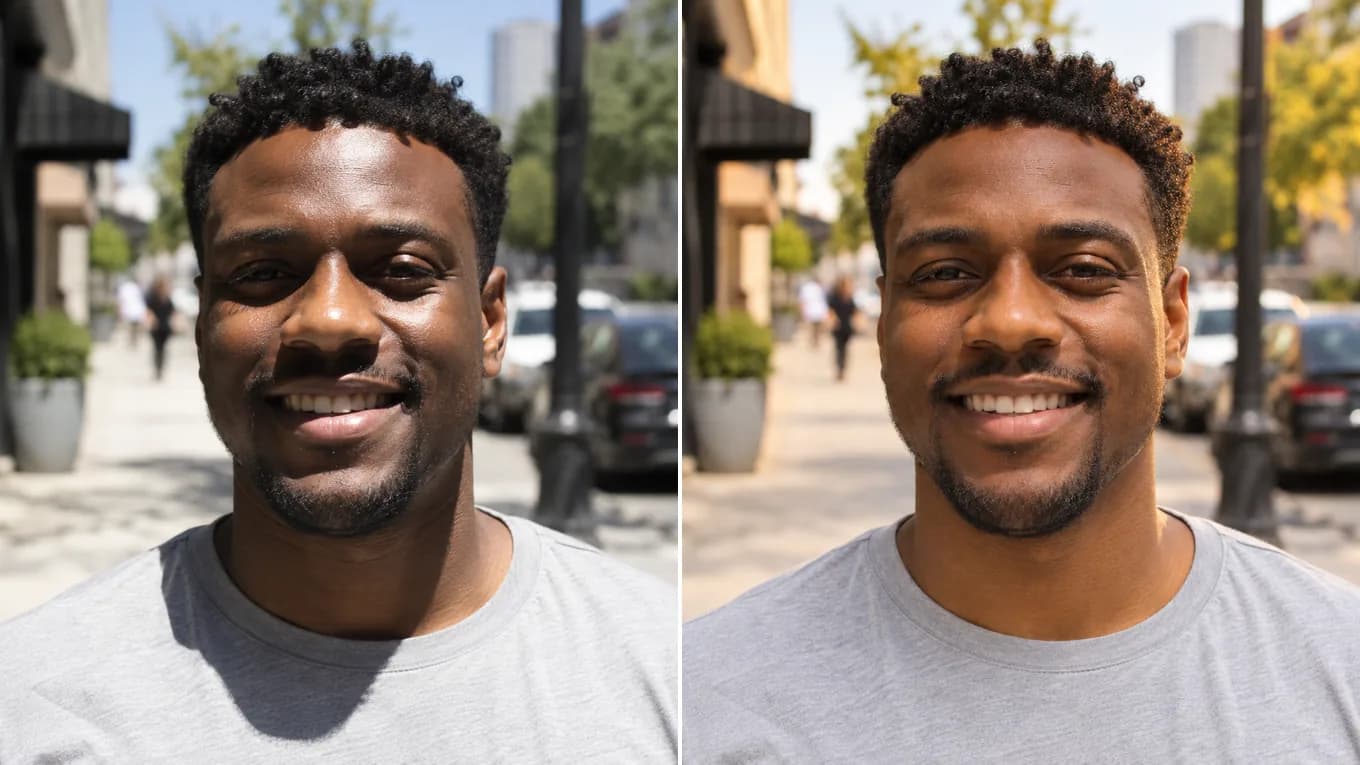
Before and after softening harsh noon sunlight shadows on a portrait
Source photoAI output
Midday Sun Shadow Fix

Clear harsh direct sunlight shadows under eyes and chin

Softens the hard overhead-sun shadows in the eye sockets, under the nose, and beneath the chin.

Keep the person's exact face, smile, and clothing. Remove harsh noon direct sunlight shadows from under the eyes and chin, diffuse with soft natural golden-hour daylight.

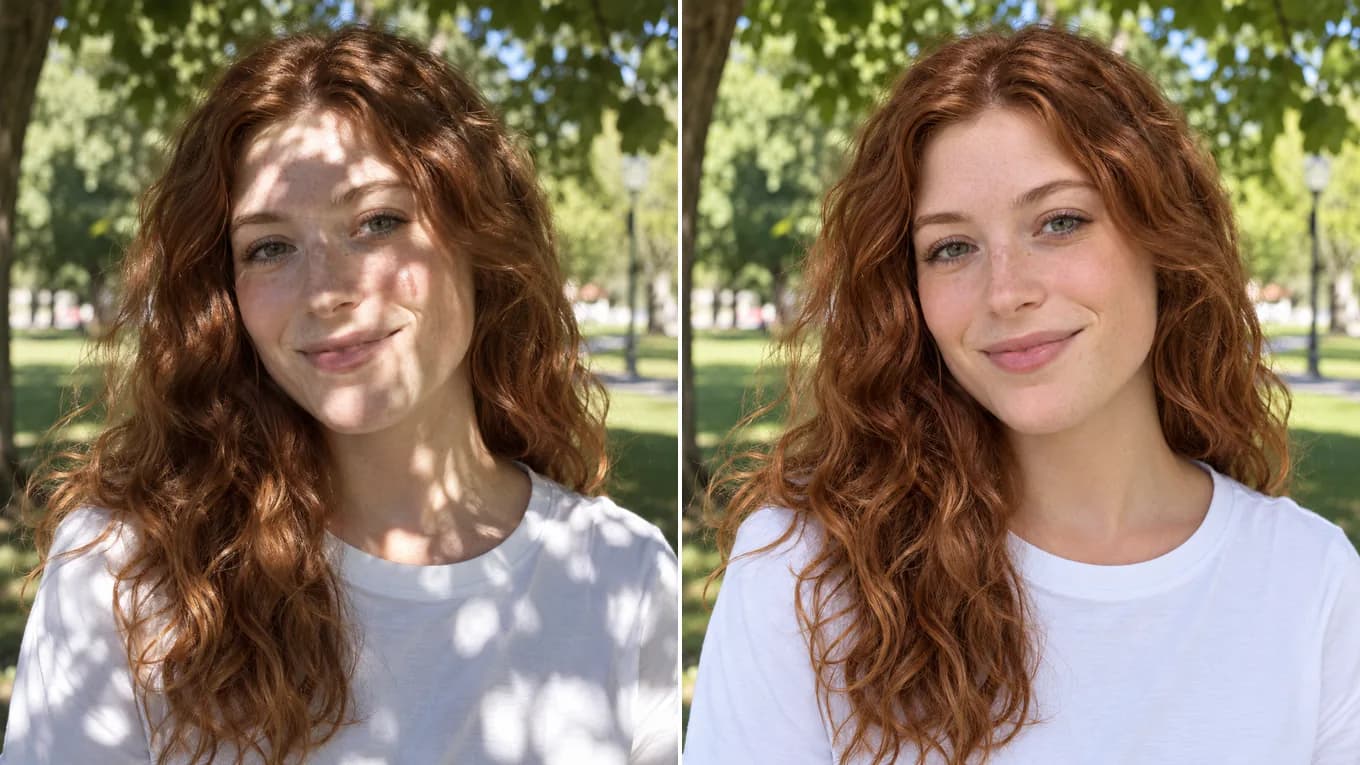
Before and after removing dappled leaf shadows from an outdoor portrait
Source photoAI output
Dappled Shadow Cleanup

Remove dappled leaf shadows from an outdoor portrait

Evens out the patchy tree shadows on the face, hair, and shirt while keeping the sunny park setting.

Keep the same person, face, expression, hair, and clothing. Remove the dappled leaf shadows across the face, hair, and shirt, and even out the light with soft natural daylight.

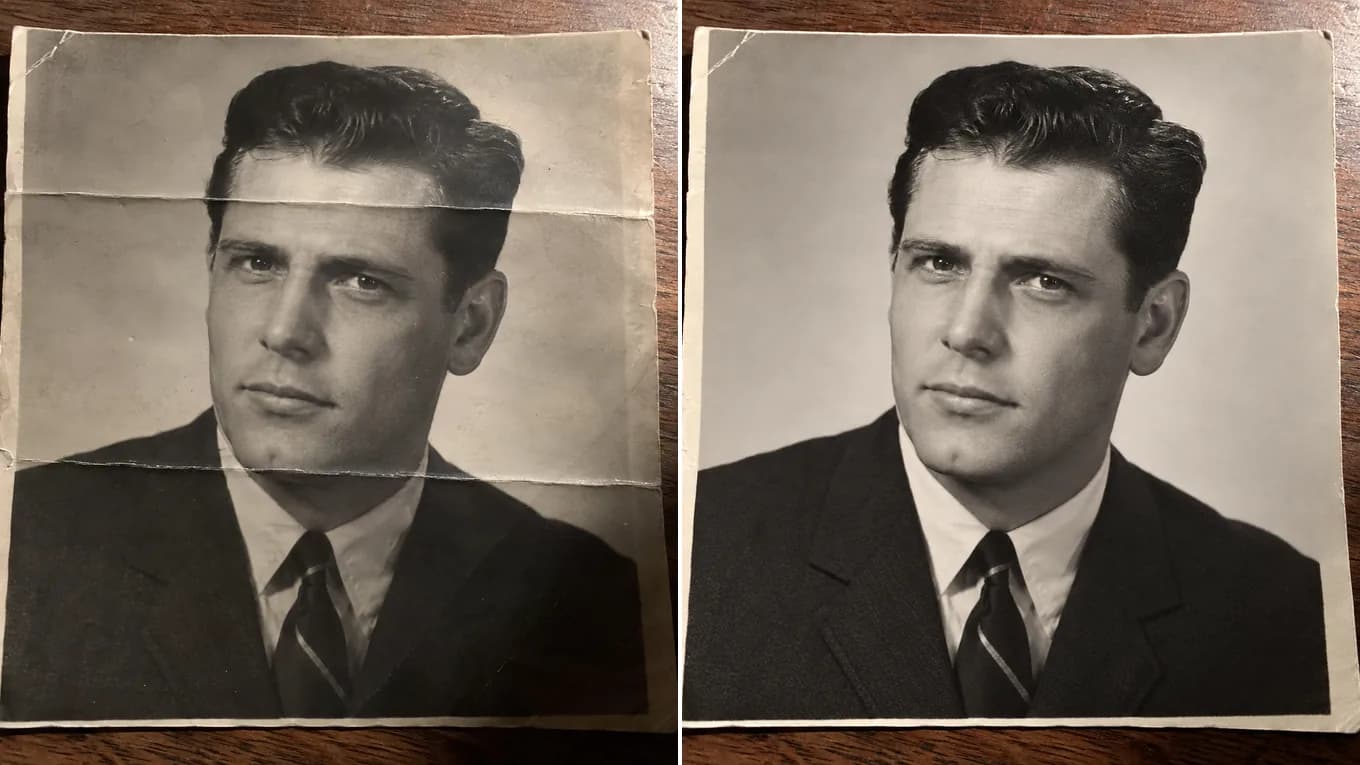
Before and after removing crease shadows from a folded 1960s portrait print
Source photoAI output
Old Photo Shadow Cleanup

Erase crease shadows from a folded vintage print

Lifts the dark fold lines and the uneven corner lighting from a phone photo of a folded 1960s print.

Remove deep dark crease shadows and uneven lighting from this vintage photograph while keeping facial identity and clothing sharp.

Lighting Physics & Neural Relighting

Why AI shadow removal looks natural instead of washed out

The model identifies shadow boundaries, separates direct light from ambient bounce, and reconstructs texture in shadowed areas while maintaining realistic depth and contact shadows.

State which shadows to remove (e.g. 'remove deep shadows under the eyes and nose') while preserving subtle form shadows that define facial bone structure.

Accepted formats
PNG, JPEG, WebP up to 10 MB per file
Shadow types handled
Harsh midday sun shadows, phone camera shadows, tree branch dappling
Identity retention
Prompts anchor facial features, makeup, and gaze; review skin and eyes at full size

Reviewed byImg2Img Product Team

Published / Updated /

ReferencesOpenAI Image Generation GuideGoogle Gemini Image Generation Docs

4-Step Shadow Removal Workflow

How to remove shadows from a photo with AI

Follow these four steps to get flattering, clean lighting.

  1. 01

    Upload your shadowed photo

    Select any portrait, product, or room photo with uneven or harsh shadow areas.

  2. 02

    Lock identity and subject geometry

    Instruct the AI to keep the person, pose, and background elements unchanged.

  3. 03

    Describe the desired lighting direction

    Specify 'remove dark shadows on the face, illuminate with soft diffused morning window light'.

  4. 04

    Check skin texture and export

    Verify natural pore texture and realistic soft shadows, then download in 1K or 2K resolution.

Shadow Removal Prompts

Copy-ready prompts for shadow correction

Load any formula directly into the studio workspace.

Soft Diffuse

Even window daylight relight

Keep the exact person and clothing unchanged. Remove all harsh dark shadows across the face and neck, replace with soft flattering north-facing window daylight.

Universal fix for portraits taken under bad overhead lights.

Load shadow removal prompt
Studio Fill

Add professional reflector fill light

Keep the exact subject, pose, and background. Add a soft silver reflector fill light on the shadow side of the face, balancing contrast while preserving depth.

Maintains cinematic drama without blocked-up black shadows.

Load shadow removal prompt
Product Shadow

Erase cluttered background drop shadows

Keep the product shape, packaging, and label completely unchanged. Remove cluttered dark cast shadows on the surface, replace with a clean soft diffused contact shadow.

Essential for clean e-commerce product listings.

Load shadow removal prompt

Explore Workflows & Models

Switch between specialized editing workflows and reference-ready models

Every page uses the same image-to-image workspace so you can test prompts across portrait editing, sketch conversion, and multi-image fusion.

Prompt-Guided AI Image Editor

AI Image Editor

Edit photos with natural language prompts using our free AI image editor. Restore old photos, change outfits, relight portraits, and swap product scenes while keeping the original composition.

Open in Studio
AI Photo to Sketch Converter

Photo to Sketch AI

Convert any photo to pencil sketch, charcoal drawing, ink-wash painting, or manga line art online with AI, keeping the likeness, pose, and composition recognizable.

Open in Studio
AI Old Photo Restoration & Colorization

Old Photo Restoration

Restore damaged, scratched, and faded vintage photos online with AI. Remove paper creases, glare, and tears while colorizing monochrome portraits with natural skin tones.

Open in Studio
AI Filter Remover & Color Neutralization

Remove Filter from Photo

Remove Instagram, TikTok, and oversaturated color filters from photos online with AI. Neutralize warm orange and magenta color casts to restore authentic skin tones and clean lighting.

Open in Studio
AI Watermark Remover & Inpainting

AI Watermark Remover

Remove watermarks, logos, timestamps, and unwanted text from photos online with AI. Seamlessly reconstruct hidden background textures without blur.

Open in Studio
AI Image Extender & Outpainting Tool

AI Expand Image

Expand photos and uncrop images beyond their original borders online with AI. Extend vertical 9:16 portraits to 16:9 widescreen wallpapers with seamless continuity.

Open in Studio
Multi-Model Image-to-Image Directory

AI Image Models

Compare top image-to-image AI models side by side. Explore Nano Banana 2, GPT Image 2.5, Qwen Image Edit, and Seedream 5.0 for reference-guided photo editing and restyling.

Explore model guide
Google Gemini Flash Image Architecture

Nano Banana 2

Multi-person portrait fusion, character consistency, rapid conversational photo edits

Explore model guide
OpenAI Multimodal Image Architecture

GPT Image 2.5

Interior redesign, commercial product scenes, complex prompt-guided restyling

Explore model guide
Alibaba Qwen Vision-Language Editing Architecture

Qwen Image Edit

Targeted hair/outfit edits, vintage photo restoration, sign & packaging text edits

Explore model guide
ByteDance Seedream 5.0 Visual Generation Engine

Seedream 5.0

Ink-wash & anime restyling, high-fashion editorial portraits, 4K visual campaigns

Explore model guide
Black Forest Labs Flux Architecture

Flux Kontext

Commercial advertising, brand packaging preservation, architectural concept design

Explore model guide
xAI Grok Visual Intelligence Engine

Grok Imagine AI

Viral social media cards, 3D pop-out framing, bold retro pixel-art transformations

Explore model guide

Shadow Removal FAQ

Questions about AI shadow removal

How to fix shadows on faces, products, and indoor photos.

Can AI remove shadows without making the photo look flat?

Yes. Unlike simple exposure brightening which washes out contrast, generative AI calculates 3D facial planes to add soft fill light while preserving dimensional depth.

Can I remove shadows cast by hats, sunglasses, or trees?

Usually, yes. Name both the shadow and what must stay, for example 'remove the hat shadow from the forehead and eyes, keep the face and hat unchanged', then compare the result with your original.

Does this work on product photos with messy surface shadows?

Yes. You can clean distracting tabletop shadows and replace them with a soft, uniform contact shadow under the product.

What image sizes can I upload?

Files up to 10 MB in PNG, JPEG, or WebP formats are supported with resolutions up to 8,192 pixels.

Can I try shadow removal for free?

Yes. Test shadow removal prompts in the studio with our free tier or starting credits.

Which model is best for removing shadows?

Qwen Image Edit excels at surgical shadow lifting on faces, while GPT Image 2.5 is ideal for environmental lighting overhauls.