AI Image Extender & Outpainting Tool

AI Image Extender: Outpaint Photos Beyond Borders

Convert tight crops into sweeping wide-angle scenes. Extend 9:16 vertical smartphone photos to 16:9 widescreen wallpapers, desktop banners, or custom aspect ratios with seamless perspective and texture continuity.

  • Converts 9:16 portrait crops into 16:9 desktop wallpapers, YouTube thumbnails, and banners
  • Synthesizes logical environmental continuation matching original depth, lighting, and materials
  • Asks the model to keep the original center unchanged; compare the center at full size
Vertical crop of a modern living room before AI image outpainting — Full 16:9 widescreen living room with seamlessly expanded windows, walls, and warm lightingTight 9:16 CropAI Expanded 16:9 Scene
AI image expansion outpaints beyond the original borders, continuing floorboards, ceiling lines, and sunset window light along the room's perspective.

Live AI Image Extender Studio

Upload your photo and expand beyond original edges

Upload any cropped photo. Select 16:9 or 21:9 in the studio aspect ratio selector and describe the extended environment.

Transformation studio

PNG, JPEG or WebP, up to 10 MB

Upload image0 of 1 images

Try these examples

Credits shown before you generate

Free tier1024 × 1024 · 1K · 1 image

Add an image and prompt to begin

Image Outpainting Showcase

From tight framing to expansive cinematic scenes

Compare tightly cropped sources with the expanded results. The dashed frame marks the new canvas.

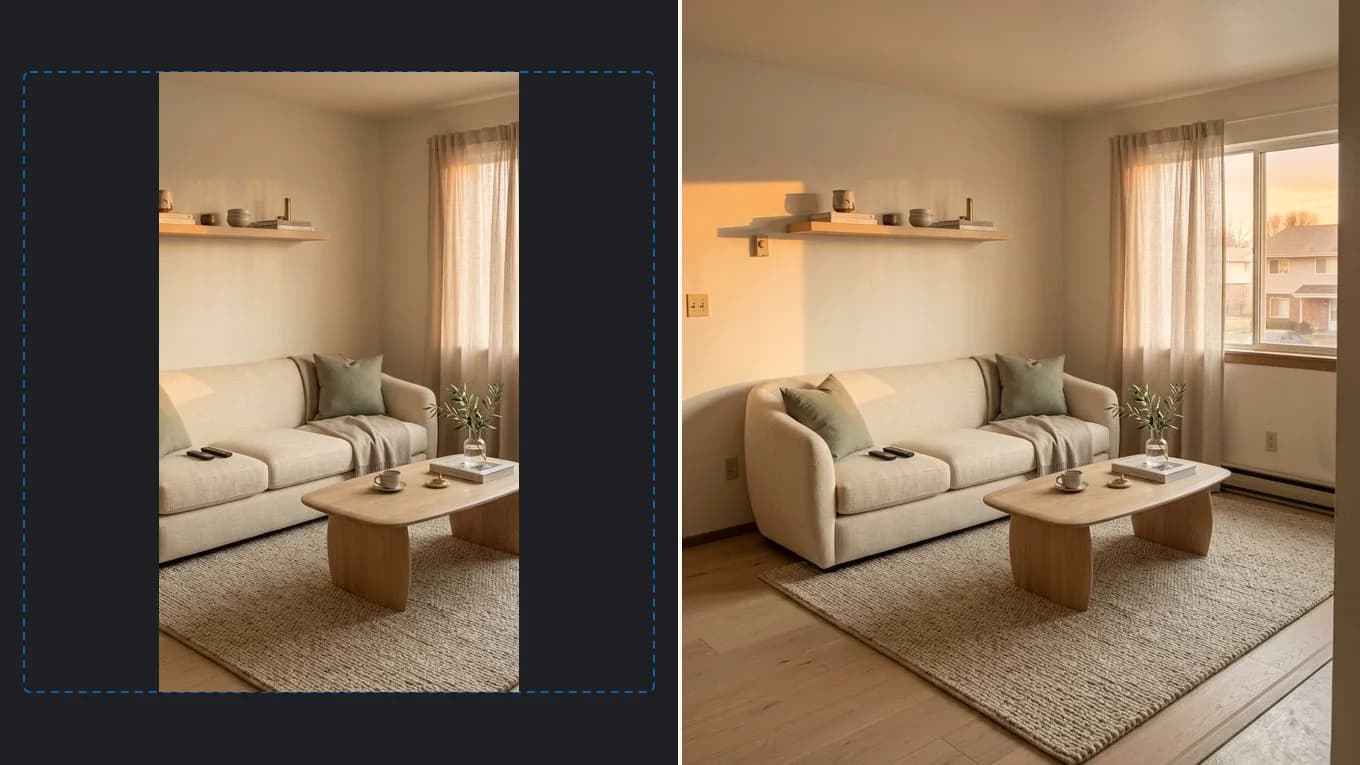
Before and after expanding vertical living room photo to 16:9 widescreen
Source photoAI output
Living Room Expansion

Expand narrow vertical living room to 16:9 panoramic view

Seamlessly adds warm oak floorboards, wide windows, and sunset light across margins.

Keep the central sofa, coffee table, and room exact. Seamlessly expand the room horizontally into a 16:9 wide-angle shot, adding warm oak floorboards and large windows with golden sunset light.
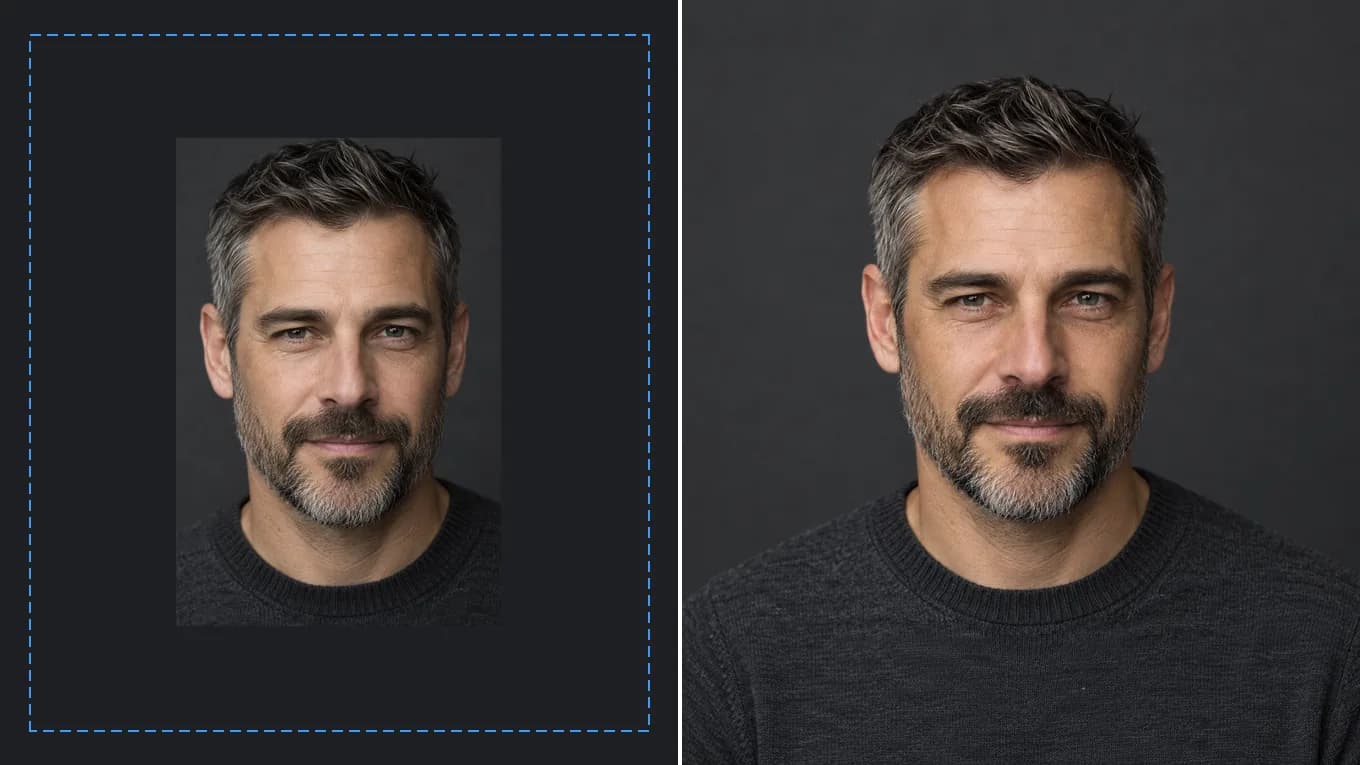
Before and after expanding a tight studio headshot into a wider portrait
Source photoAI output
Portrait Staging

Expand tight headshot to cinematic environmental portrait

Extends the charcoal backdrop, shoulders, and sweater around the original headshot.

Keep the exact person and pose. Expand the framing outwards into a wider editorial portrait, extending the charcoal studio backdrop seamlessly.

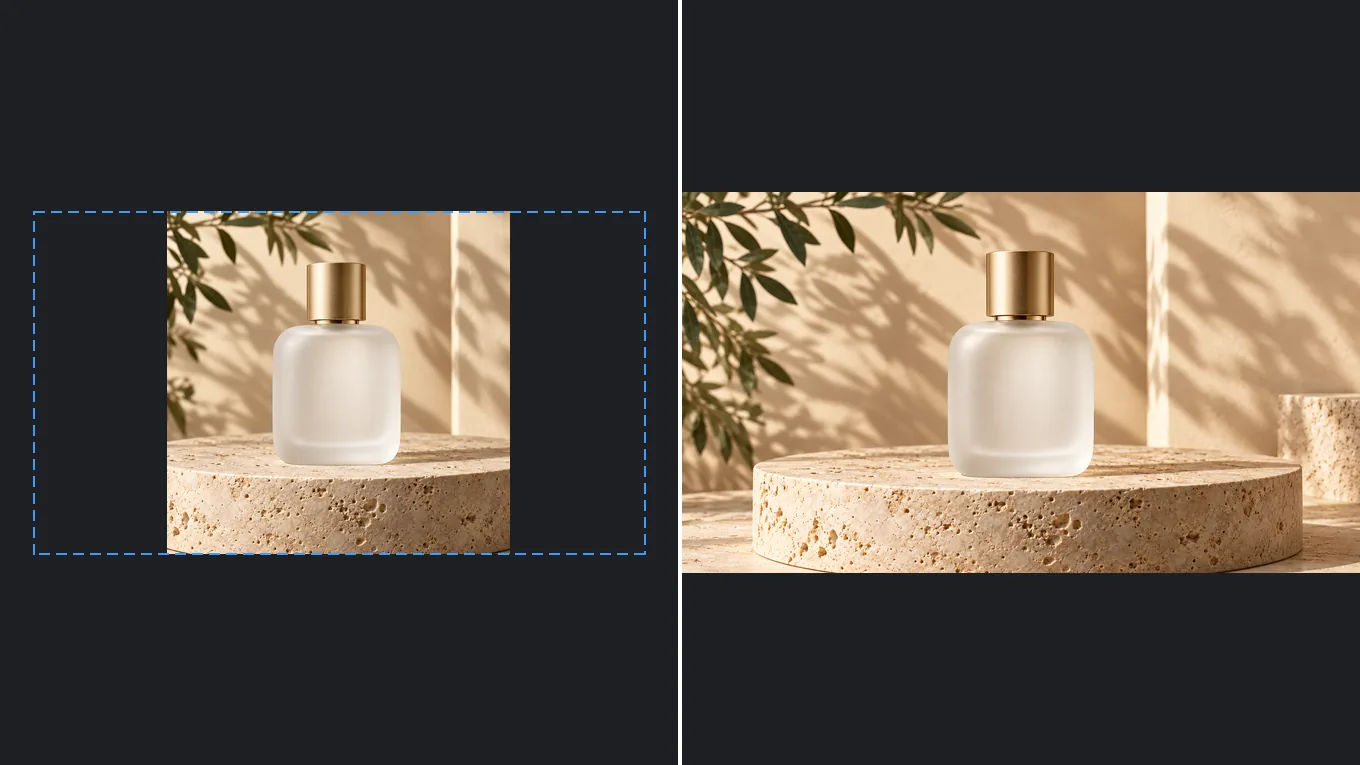
Before and after expanding a square perfume shot into a 16:9 banner
Source photoAI output
Commercial Banner

Convert square product shot to widescreen hero banner

Generates a matching travertine podium and botanical backdrop on both sides of the square shot.

Keep the uploaded product bottle completely exact. Expand the sides into a 16:9 landscape commercial banner with travertine stone surface.

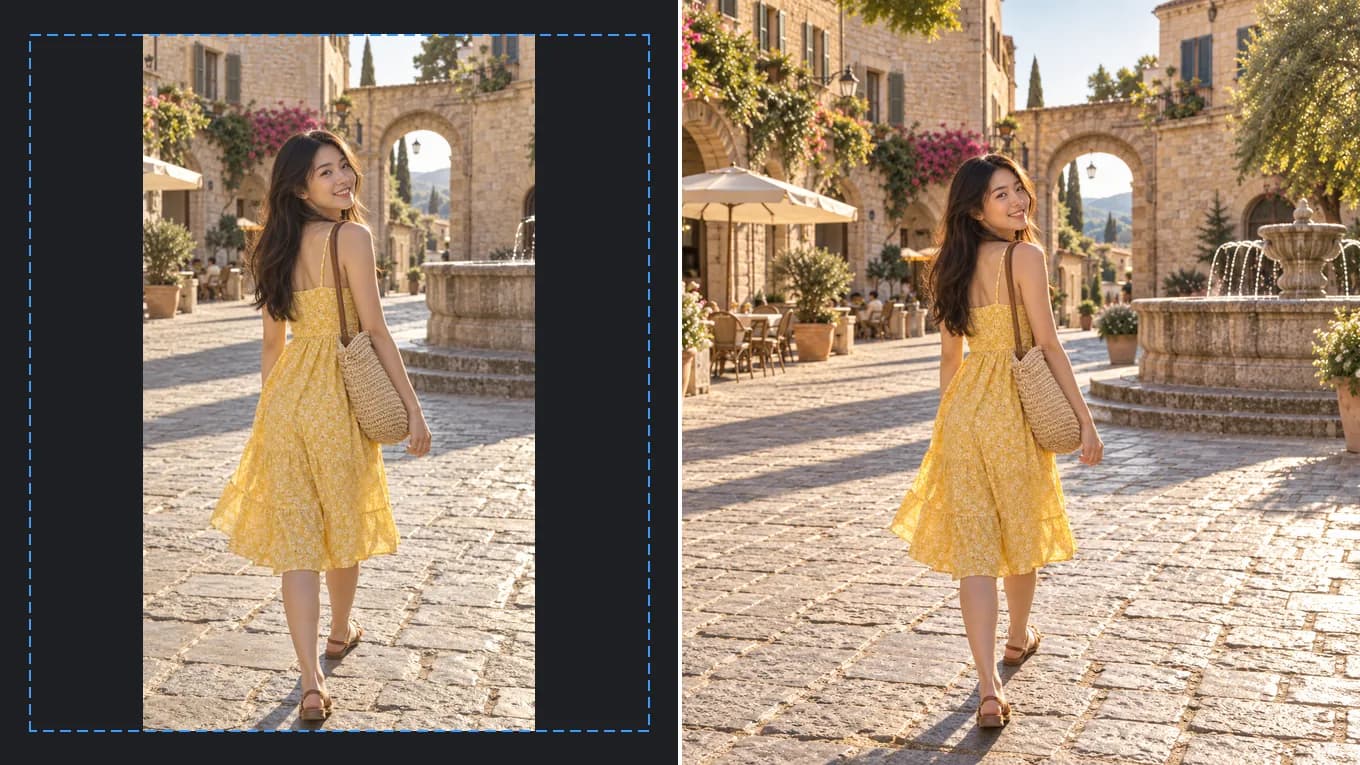
Before and after expanding a vertical plaza photo into a wider scene
Source photoAI output
Social Photo Outpaint

Extend a vertical social photo into a wider scene

Extends the plaza, archways, and late-afternoon light around the original vertical photo.

Keep the central subject and expression unchanged. Expand the framing into a wide cinematic outdoor scene with matching sunlight.

Generative Outpainting & Scene Extrapolation

How generative AI predicts what lies outside the camera frame

The model receives your upload as the center of a larger canvas, reads the edge context, and generates matching scenery around it. Because it redraws the full frame, compare the original area and the seams at full size before you publish.

Describe what should appear in the extended margins (e.g. 'extend the room to the left with warm floorboards and a wide window with afternoon sunlight').

Accepted formats
PNG, JPEG, WebP up to 10 MB per file
Aspect ratio conversions
9:16 vertical to 16:9 horizontal, 1:1 square to 21:9 cinematic ultrawide
Center lock
The original center is the visual anchor; generative models can still alter fine detail

Reviewed byImg2Img Product Team

Published / Updated /

ReferencesOpenAI Image Generation GuideGoogle Gemini Image Generation Docs

4-Step Image Expansion Workflow

How to expand an image with AI

Four steps to uncrop photos into wide panoramic scenes.

  1. 01

    Upload your cropped photo

    Select the portrait or square photo you want to convert into a wider format.

  2. 02

    Choose your target aspect ratio

    Select 16:9, 3:2, or 21:9 in the studio aspect ratio dropdown.

  3. 03

    Describe the outer environment

    Specify what should fill the extended edges: 'extend the room with warm floorboards and soft sunset window light'.

  4. 04

    Download wide-angle wallpaper

    Inspect seamless blending along the original edges, then export in full 2K resolution.

Outpainting Prompts

Formulas to extend photos into banners & wallpapers

Click any prompt to load directly into the studio workspace.

Interior Widescreen

Living room & indoor space outpaint

Keep the central room furniture and architecture completely exact. Expand horizontally into a 16:9 wide-angle view with matching flooring, ceiling beams, and soft natural daylight.

Converts vertical smartphone room photos into real estate banners.

Use expansion prompt
Landscape Wallpaper

Nature & travel photo horizontal extension

Keep the central subject and trees unchanged. Expand the landscape outwards into a 16:9 panoramic vista with matching mountain horizons and blue sky.

Creates custom 4K desktop wallpapers from phone snaps.

Use expansion prompt
E-Commerce Banner

Product packshot to website header

Keep the product packaging and position exact. Outpaint the sides into an ultrawide 21:9 website hero banner with elegant matching background textures and soft shadows.

Perfect for Shopify and Amazon storefront headers.

Use expansion prompt

Explore Workflows & Models

Switch between specialized editing workflows and reference-ready models

Every page uses the same image-to-image workspace so you can test prompts across portrait editing, sketch conversion, and multi-image fusion.

Prompt-Guided AI Image Editor

AI Image Editor

Edit photos with natural language prompts using our free AI image editor. Restore old photos, change outfits, relight portraits, and swap product scenes while keeping the original composition.

Open in Studio
AI Photo to Sketch Converter

Photo to Sketch AI

Convert any photo to pencil sketch, charcoal drawing, ink-wash painting, or manga line art online with AI, keeping the likeness, pose, and composition recognizable.

Open in Studio
AI Old Photo Restoration & Colorization

Old Photo Restoration

Restore damaged, scratched, and faded vintage photos online with AI. Remove paper creases, glare, and tears while colorizing monochrome portraits with natural skin tones.

Open in Studio
AI Shadow Remover & Portrait Relighting

Remove Shadow from Photo

Remove unwanted facial shadows, background glare, and hard lighting shadows from photos online with AI. Relight portraits and product shots while keeping the original subject recognizable.

Open in Studio
AI Filter Remover & Color Neutralization

Remove Filter from Photo

Remove Instagram, TikTok, and oversaturated color filters from photos online with AI. Neutralize warm orange and magenta color casts to restore authentic skin tones and clean lighting.

Open in Studio
AI Watermark Remover & Inpainting

AI Watermark Remover

Remove watermarks, logos, timestamps, and unwanted text from photos online with AI. Seamlessly reconstruct hidden background textures without blur.

Open in Studio
Multi-Model Image-to-Image Directory

AI Image Models

Compare top image-to-image AI models side by side. Explore Nano Banana 2, GPT Image 2.5, Qwen Image Edit, and Seedream 5.0 for reference-guided photo editing and restyling.

Explore model guide
Google Gemini Flash Image Architecture

Nano Banana 2

Multi-person portrait fusion, character consistency, rapid conversational photo edits

Explore model guide
OpenAI Multimodal Image Architecture

GPT Image 2.5

Interior redesign, commercial product scenes, complex prompt-guided restyling

Explore model guide
Alibaba Qwen Vision-Language Editing Architecture

Qwen Image Edit

Targeted hair/outfit edits, vintage photo restoration, sign & packaging text edits

Explore model guide
ByteDance Seedream 5.0 Visual Generation Engine

Seedream 5.0

Ink-wash & anime restyling, high-fashion editorial portraits, 4K visual campaigns

Explore model guide
Black Forest Labs Flux Architecture

Flux Kontext

Commercial advertising, brand packaging preservation, architectural concept design

Explore model guide
xAI Grok Visual Intelligence Engine

Grok Imagine AI

Viral social media cards, 3D pop-out framing, bold retro pixel-art transformations

Explore model guide

Image Expansion FAQ

Questions about AI image expansion and outpainting

How to uncrop photos, convert aspect ratios, and generate wide wallpapers.

What does uncropping or outpainting an image mean?

It means using generative AI to predict and draw what was outside the original camera frame, turning a vertical or square photo into a wide landscape without stretching.

Does image expansion alter the original part of the photo?

The prompt asks the model to keep the original area and generate only the new margins. Generative models redraw the full frame, so faces or text can shift slightly. Compare the center at full size before you publish.

Can I convert a vertical 9:16 smartphone photo to a 16:9 wallpaper?

Yes. Simply choose 16:9 in the aspect ratio selector, and the AI will generate matching left and right wings to fill the canvas.

What image formats and file limits apply?

Supports PNG, JPEG, and WebP files up to 10 MB per image and up to 8,192 pixels.

Is AI image expansion free to use online?

Yes. Test outpainting in the studio using our free tier or starting credits.

Which model works best for scene expansion?

GPT Image 2.5 and Seedream 5.0 excel at continuing architectural perspective and natural landscape lighting.