Prompt-Guided AI Image Editor

AI Image Editor: Edit Photos with Text Prompts

Upload a photo and describe the exact change you want. Repair damaged vintage portraits, swap hair color or wardrobe, relight faces, or rebuild product backgrounds without manual masking.

  • No manual brush masking required—describe local or global edits in plain English
  • Keep facial identity, camera angle, and subject geometry locked to your upload
  • Compare Nano Banana 2, GPT Image 2.5, Qwen Image Edit, and Seedream 5.0 in one studio
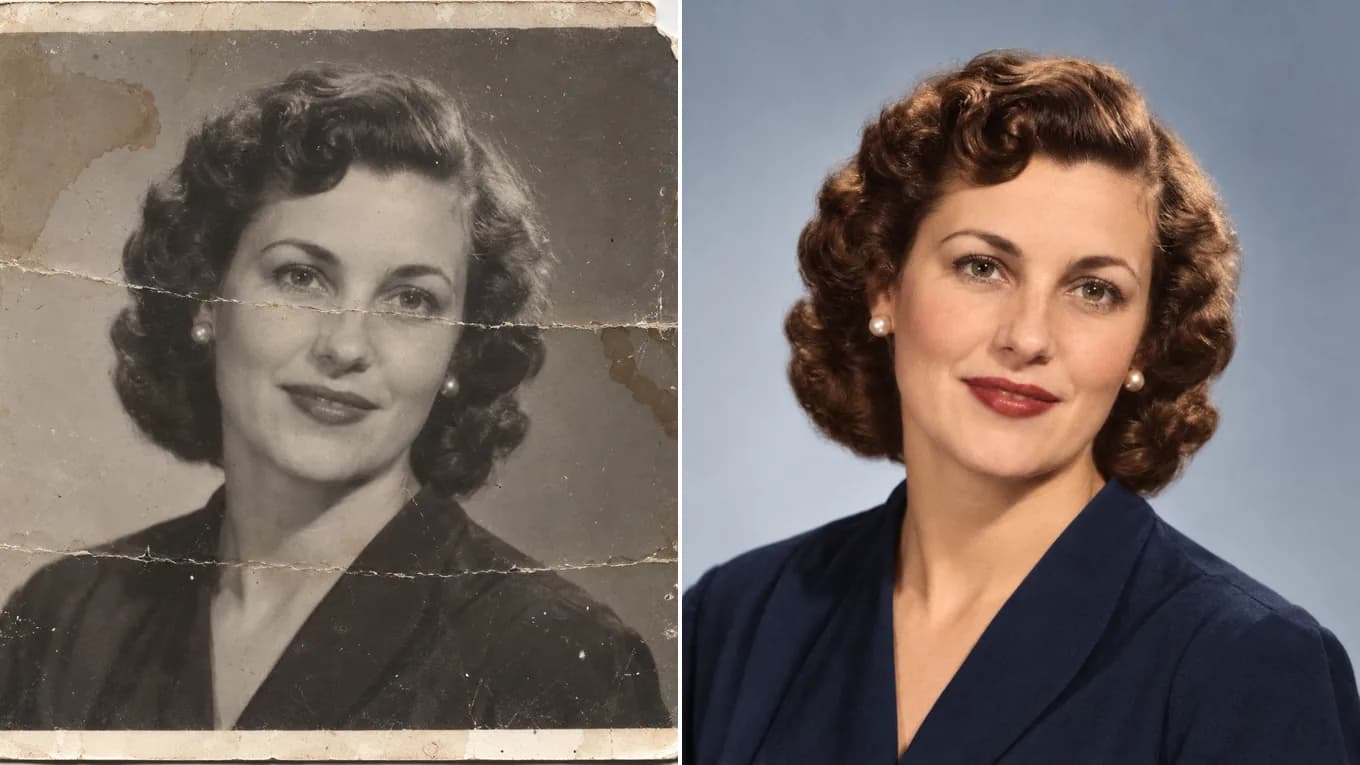
Creased vintage black-and-white portrait before AI photo restoration and editing — Restored full-color portrait after prompt-guided AI image editingOriginal Damaged PhotoAI Restored & Colorized
Prompt-guided photo editing repairs creases and restores natural skin tones from a single reference upload, while keeping the face as close to the original as possible.

Live AI Photo Editor Workspace

Upload your image and type your edit instruction

Start with a portrait, product shot, or room photo. State what must stay the same first, then specify the lighting, color, wardrobe, or restoration edit.

Transformation studio

PNG, JPEG or WebP, up to 10 MB

Upload image0 of 1 images

Try these examples

Credits shown before you generate

Free tier1024 × 1024 · 1K · 1 image

Add an image and prompt to begin

Verified Before & After Edits

See what changes and what stays the same

Each comparison below shows the original reference upload on the left and the prompt-edited output on the right. Click any card to load its editing prompt into the studio.

Before and after AI photo restoration removing creases and colorizing a vintage portrait
Source photoAI output
Old Photo Restoration

Remove heavy creases and colorize vintage portraits

Clears the creases, water stains, and torn corner of a 1950s print, then adds soft natural color.

Restore this damaged vintage black-and-white portrait into a clean, high-resolution natural color photograph. Remove all paper creases, scratches, and stains while keeping the exact facial features, expression, and hairstyle intact.
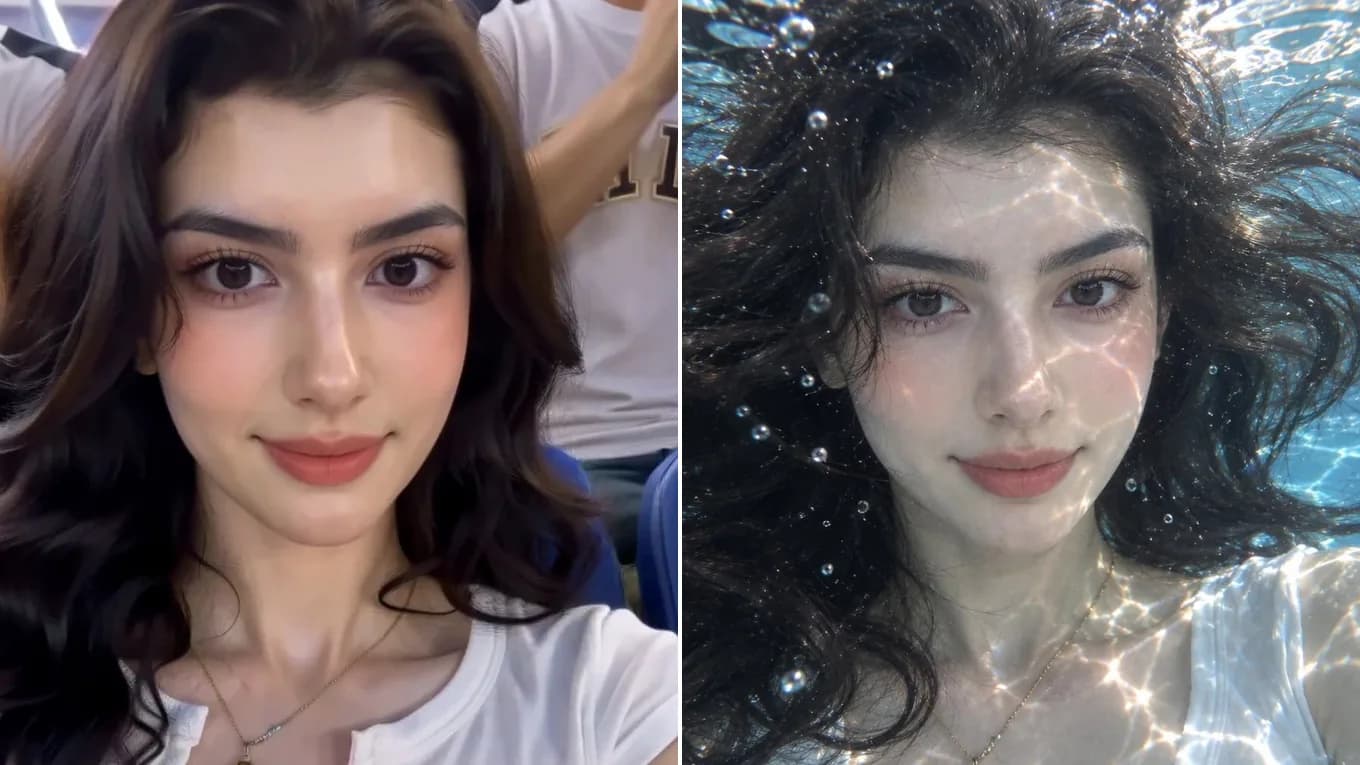
Before and after moving a stadium selfie into a sunlit underwater portrait
Source photoAI output
Scene Change

Move a stadium selfie into a sunlit underwater portrait

Keeps the face, necklace, and white top while swapping the stadium seats for sunlit water, floating hair, and bubbles.

Keep the exact person, facial identity, necklace, and white top. Place her underwater in a sunlit pool with soft caustic light, floating hair, and small bubbles.

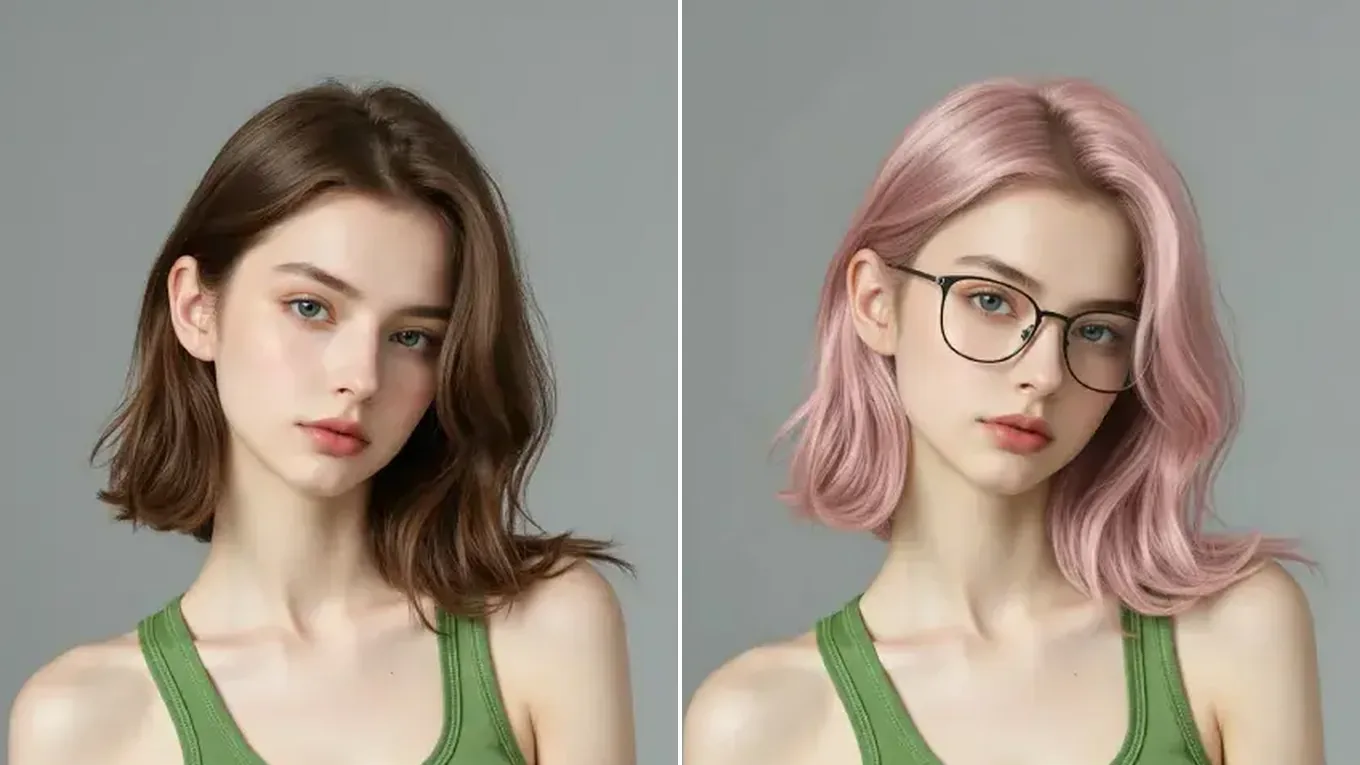
Before and after an AI edit that dyes the hair pastel pink and adds round glasses
Source photoAI output
Local Attribute Edit

Change hair color and add glasses in one edit

Turns brown hair pastel pink and adds thin round glasses while keeping the face, makeup, and gray backdrop.

Keep the exact face, pose, skin tone, and gray studio background from the original photo. Change the hair to a soft pastel pink with natural highlights and add thin round metal glasses.

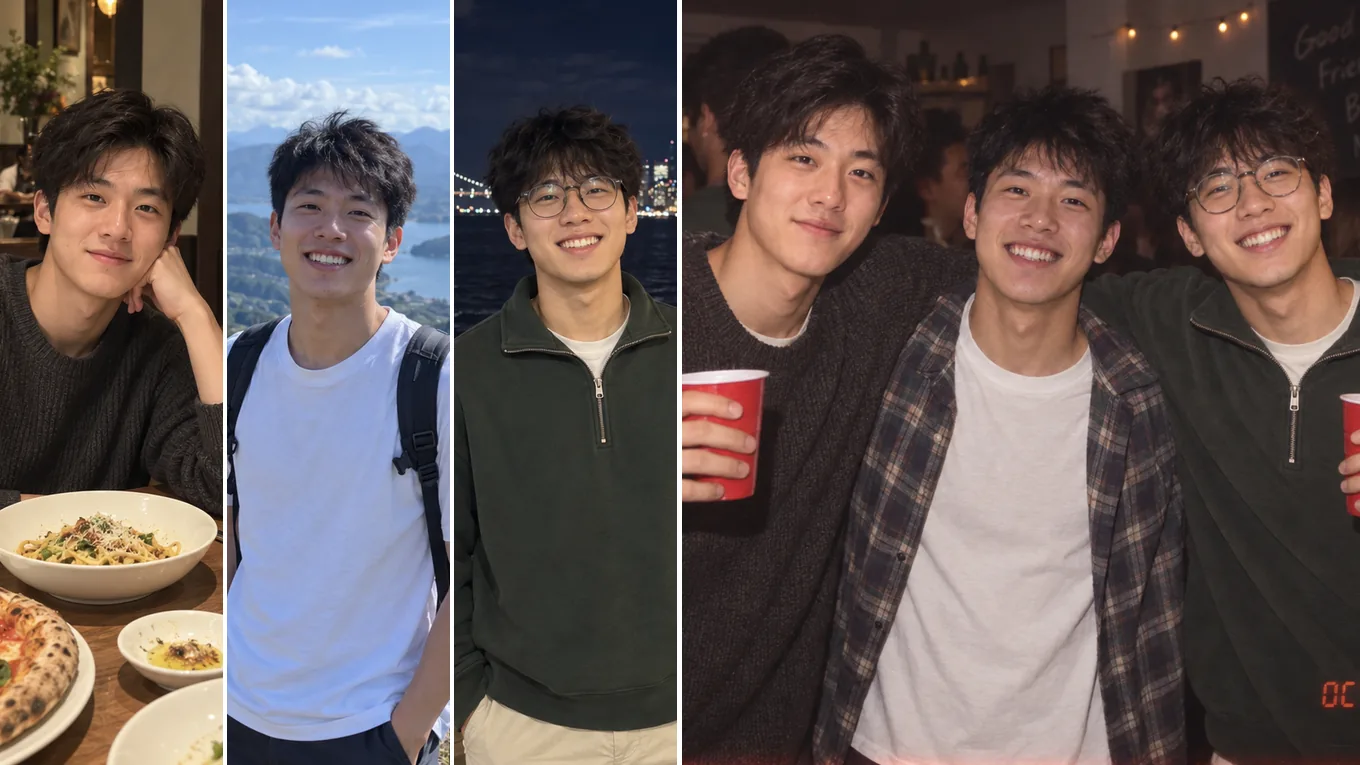
Before and after multi-image reference portrait fusion into a single party scene
Source photoAI output
Multi-Image Scene Edit

Combine multiple portrait references into one cohesive scene

Merges separate reference portraits into a candid party photograph with unified warm ambient lighting.

Combine the three people from the reference photos into a single candid house-party photograph raising red cups together, preserving each person's exact facial identity and expression under warm indoor lighting.

How Prompt-Guided Photo Editing Works

Why edit with an image-to-image AI editor instead of manual retouching?

Traditional photo editors require layer masks, clone stamps, and lighting adjustments by hand. An AI image editor reads your uploaded photo as a structural anchor and applies targeted instructions—such as removing scratches, changing hair color, or replacing a studio backdrop—in one pass.

To get predictable edits, name the preserved elements first (face, pose, label text, or camera framing) and keep each prompt focused on one or two visual changes.

Accepted input formats
PNG, JPEG, and WebP up to 10 MB (up to 8,192 px per edge)
Supported editing modes
Old photo restoration, wardrobe & hair edits, portrait relighting, background replacement
Multi-reference support
Up to 14 reference images on supported multi-reference models

Reviewed byImg2Img Product Team

Published / Updated /

ReferencesOpenAI Image Generation GuideGoogle Gemini Image Generation Docs

4-Step Editing Workflow

How to edit photos with text prompts

Follow this sequence to prevent subject drift and get clean, repeatable photo edits.

  1. 01

    Upload a clear source photo

    Choose a well-framed PNG, JPEG, or WebP image. Sharp facial features or clean product edges help the model lock onto your subject.

  2. 02

    State what must remain unchanged

    Start your prompt by naming what must stay the same, such as subject identity, pose, framing, or packaging geometry, before describing any changes.

  3. 03

    Describe the targeted edit

    Specify the exact change—such as restoring damaged paper, changing hair color, swapping wardrobe, or relighting the background.

  4. 04

    Compare outputs and refine

    Generate 1 to 4 variations, inspect fine edges like hands and typography, and adjust one prompt clause at a time if needed.

Copy-Ready Edit Formulas

Proven AI image editor prompts

Load any formula directly into the workspace above and customize the final detail to match your photo.

Restoration & Colorize

Vintage portrait repair formula

Restore this damaged vintage portrait into a crisp, natural color photo. Remove all folds, dust, and scratches while preserving the exact facial structure, gaze, and clothing texture.

Best for scanned family albums, creased B&W portraits, and faded prints.

Use edit formula
Wardrobe & Styling

Professional headshot attire swap

Keep the exact face, hairstyle, glasses, and head angle from the uploaded photo. Change the casual shirt into a tailored charcoal blazer over a crisp white shirt with soft studio key lighting.

Preserves identity while upgrading wardrobe and background polish.

Use edit formula
Interior & Product Scene

Room & product environment restyle

Keep the exact room architecture, window placement, and furniture layout. Redesign the interior in a warm Japandi style with natural oak wood, bouclé upholstery, and soft morning sunlight.

Anchors perspective lines and room geometry while replacing materials.

Use edit formula

Explore Workflows & Models

Switch between specialized editing workflows and reference-ready models

Every page uses the same image-to-image workspace so you can test prompts across portrait editing, sketch conversion, and multi-image fusion.

AI Photo to Sketch Converter

Photo to Sketch AI

Convert any photo to pencil sketch, charcoal drawing, ink-wash painting, or manga line art online with AI, keeping the likeness, pose, and composition recognizable.

Open in Studio
AI Old Photo Restoration & Colorization

Old Photo Restoration

Restore damaged, scratched, and faded vintage photos online with AI. Remove paper creases, glare, and tears while colorizing monochrome portraits with natural skin tones.

Open in Studio
AI Shadow Remover & Portrait Relighting

Remove Shadow from Photo

Remove unwanted facial shadows, background glare, and hard lighting shadows from photos online with AI. Relight portraits and product shots while keeping the original subject recognizable.

Open in Studio
AI Filter Remover & Color Neutralization

Remove Filter from Photo

Remove Instagram, TikTok, and oversaturated color filters from photos online with AI. Neutralize warm orange and magenta color casts to restore authentic skin tones and clean lighting.

Open in Studio
AI Watermark Remover & Inpainting

AI Watermark Remover

Remove watermarks, logos, timestamps, and unwanted text from photos online with AI. Seamlessly reconstruct hidden background textures without blur.

Open in Studio
AI Image Extender & Outpainting Tool

AI Expand Image

Expand photos and uncrop images beyond their original borders online with AI. Extend vertical 9:16 portraits to 16:9 widescreen wallpapers with seamless continuity.

Open in Studio
Multi-Model Image-to-Image Directory

AI Image Models

Compare top image-to-image AI models side by side. Explore Nano Banana 2, GPT Image 2.5, Qwen Image Edit, and Seedream 5.0 for reference-guided photo editing and restyling.

Explore model guide
Google Gemini Flash Image Architecture

Nano Banana 2

Multi-person portrait fusion, character consistency, rapid conversational photo edits

Explore model guide
OpenAI Multimodal Image Architecture

GPT Image 2.5

Interior redesign, commercial product scenes, complex prompt-guided restyling

Explore model guide
Alibaba Qwen Vision-Language Editing Architecture

Qwen Image Edit

Targeted hair/outfit edits, vintage photo restoration, sign & packaging text edits

Explore model guide
ByteDance Seedream 5.0 Visual Generation Engine

Seedream 5.0

Ink-wash & anime restyling, high-fashion editorial portraits, 4K visual campaigns

Explore model guide
Black Forest Labs Flux Architecture

Flux Kontext

Commercial advertising, brand packaging preservation, architectural concept design

Explore model guide
xAI Grok Visual Intelligence Engine

Grok Imagine AI

Viral social media cards, 3D pop-out framing, bold retro pixel-art transformations

Explore model guide

AI Image Editor FAQ

Common questions about prompt-based photo editing

Practical answers on preserving facial likeness, fixing old photos, and choosing the right model.

How is an AI image editor different from a text-to-image generator?

A text-to-image generator invents a brand-new picture from scratch, which means you cannot edit an existing person or product. Our AI image editor takes your uploaded photo as the structural reference and modifies only the attributes, lighting, or background you specify.

How do I keep a person's face from changing during an edit?

Begin your prompt with an explicit preservation instruction such as 'Keep the facial identity, expression, and head angle from the source photo,' and avoid asking for dramatic age or camera-angle changes in the same step. Compare the result with the source at full size.

Can I restore and colorize scratched black-and-white photos?

Yes. Upload the scanned photo and instruct the editor to remove creases, dust, and tears while restoring natural skin tones and fabric colors.

What file formats and image sizes are supported?

You can upload PNG, JPEG, or WebP images up to 10 MB per file and up to 8,192 pixels on the longest edge.

Can I try the AI image editor for free?

Yes. You can explore the studio, load sample prompts, and use the Free Mini model tier or starter credits depending on current workspace availability.

Which model is best for precision local edits and text replacement?

Qwen Image Edit and GPT Image 2.5 excel at targeted instruction following and in-image text edits, while Nano Banana 2 is ideal when combining multiple reference images.